How to Use GA4 for Smarter Marketing Decisions (Step-by-Step)
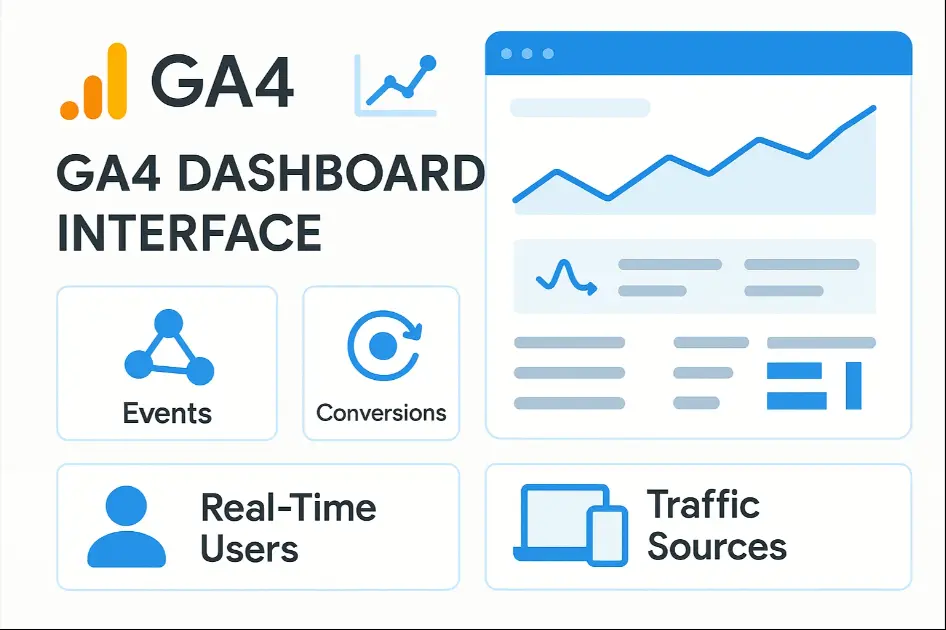
If you can’t measure it, you can’t improve it — and that’s exactly why data analytics is the heart of digital marketing. Whether you run ads, post content, or sell online, knowing who visits your site, what they do, and where they drop off helps you grow smarter, not harder.
That’s where Google Analytics 4 (GA4) comes in — Google’s latest, free analytics platform built for the modern web.
In this guide, you’ll learn why GA4 matters, how to set it up step-by-step, and how to start analysing real-time user behaviour — even if you don’t have a website yet.
Why Google Analytics 4 (GA4)?
Google Analytics 4 replaces Universal Analytics (the old version) and gives you a more accurate, event-based understanding of how users interact with your business.
Key Benefits:
- Free & easy to use — perfect for beginners and professionals alike.
- Event-based tracking → Every click, scroll, and view counts as data.
- Cross-platform tracking → Works across websites and mobile apps.
- Privacy-focused → Built for a cookieless future (no third-party cookies).
- AI-powered insights → Get predictive metrics like “Purchase Probability.”
In short: GA4 helps you see not just what happened, but why it happened.
How to Register for GA4 (Step-by-Step Setup Guide)
Setting up GA4 is simple — all you need is a Google account.
Even if you don’t have a website right now, you can still explore GA4 using Google’s free demo data (Google Merchandise Store).
Step 1: Go to Google Analytics
- Visit analytics.google.com and sign in with your Google account.
- Click “Start Measuring”.
Step 2: Create a New Account
- Add your Account Name (for example: Your Business or Brand Name).
- Choose Account Settings (you can keep the defaults).
- Click Next
Step 3: Create a Property (GA4)
- Enter your Property Name (example: “My Website Analytics”).
- Select your reporting time zone and currency.
- Click Next → Choose your business category and size.
- Click Create → Accept the Terms of Service.
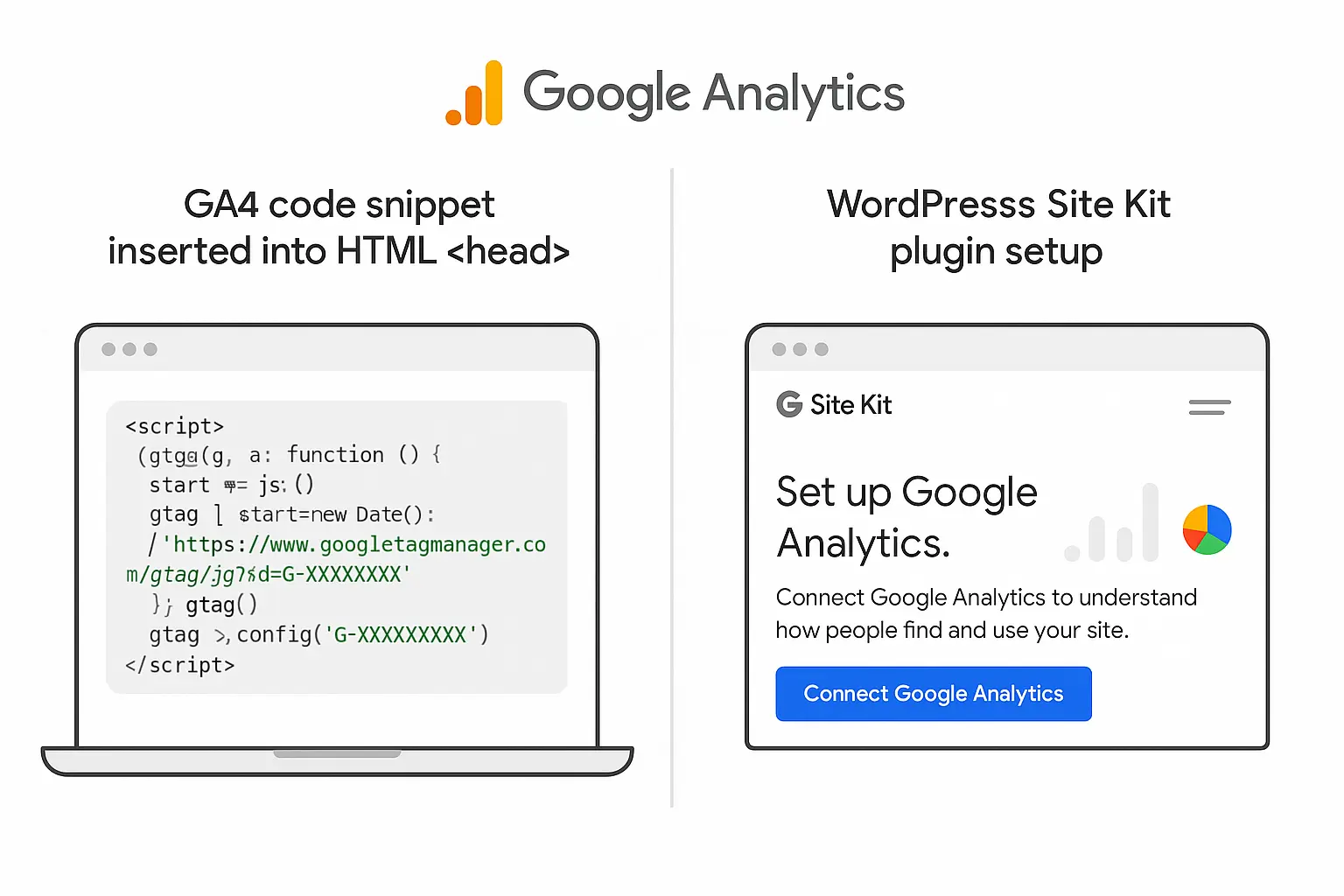
Step 4: Add a Data Stream
Choose how you want to track data:
- Web → For your website.
- iOS App → For iPhone apps.
- Android App → For Android apps.
If you don’t have a website yet, skip this for now — we’ll use Google’s demo data instead.
Pro Tip: To explore GA4 right away, open the Google Merchandise Store Demo Account → GA4 Demo. It’s free and shows live eCommerce analytics.
How GA4 Works: Events, Conversions, and Real-Time Data
GA4 doesn’t rely on “sessions” like the old Analytics. Instead, everything is an event — which gives you deeper insight into user behaviour.
1. Events
An event is any action a user takes — visiting a page, clicking a button, playing a video, or submitting a form.
Default events tracked automatically:
- page_view → when a page is loaded
- scroll → when a user scrolls 90% of a page
- Click → when an external link is clicked
- view_search_results → when someone uses your search bar
You can also create custom events for specific goals (like “form_submitted” or “video_play”).
How to view events: In GA4 → Left sidebar → Reports → Engagement → Events.
2. Conversions
Conversions are your success actions — things that matter most for your business.
For example:
- Purchase completed
- Contact form submitted
- Newsletter signup
To mark an event as a conversion:
- Go to Admin → Events → Mark as Conversion.
- GA4 will start counting that event as a “conversion” from that point onward.
Pro Tip: Track at least 2–3 conversions that match your business goals.
3. User Properties
User Properties describe your audience’s characteristics — device, location, language, etc.
GA4 lets you define custom properties like:
- Membership level (free/premium)
- User type (new vs returning)
- Interest category
Use these insights to segment your audience and create targeted marketing campaigns.
4. Path Exploration
Want to see what users do before or after a key event (like purchase or form fill)?
Use Path Exploration in GA4 to visualise user journeys.
Steps:
- Go to Explore → Path Exploration.
- Set your starting point (like “page_view” or “add_to_cart”).
- Analyse where users go next — and where they drop off.
This helps you identify weak spots in your website flow.
5. Real-Time Data
One of GA4’s most exciting features is real-time tracking — see what’s happening on your site right now.
View:
- Active users
- Top pages currently being viewed
- Active devices (mobile/desktop)
- Locations and traffic sources
- Navigate: Reports → Real-time.
Try it: Open your website on your phone — you’ll see your visit appear instantly in GA4.
Using GA4 for Marketing Decisions
Once you start collecting data, GA4 becomes your digital compass.
Here’s how to use it effectively:

Every insight = a marketing decision.
Free Tools & Integrations with GA4
Enhance your analytics with these free tools:
- Google Tag Manager (GTM) → Add tracking codes without editing website code.
- Google Data Studio (Looker Studio) → Visualise GA4 data in custom dashboards.
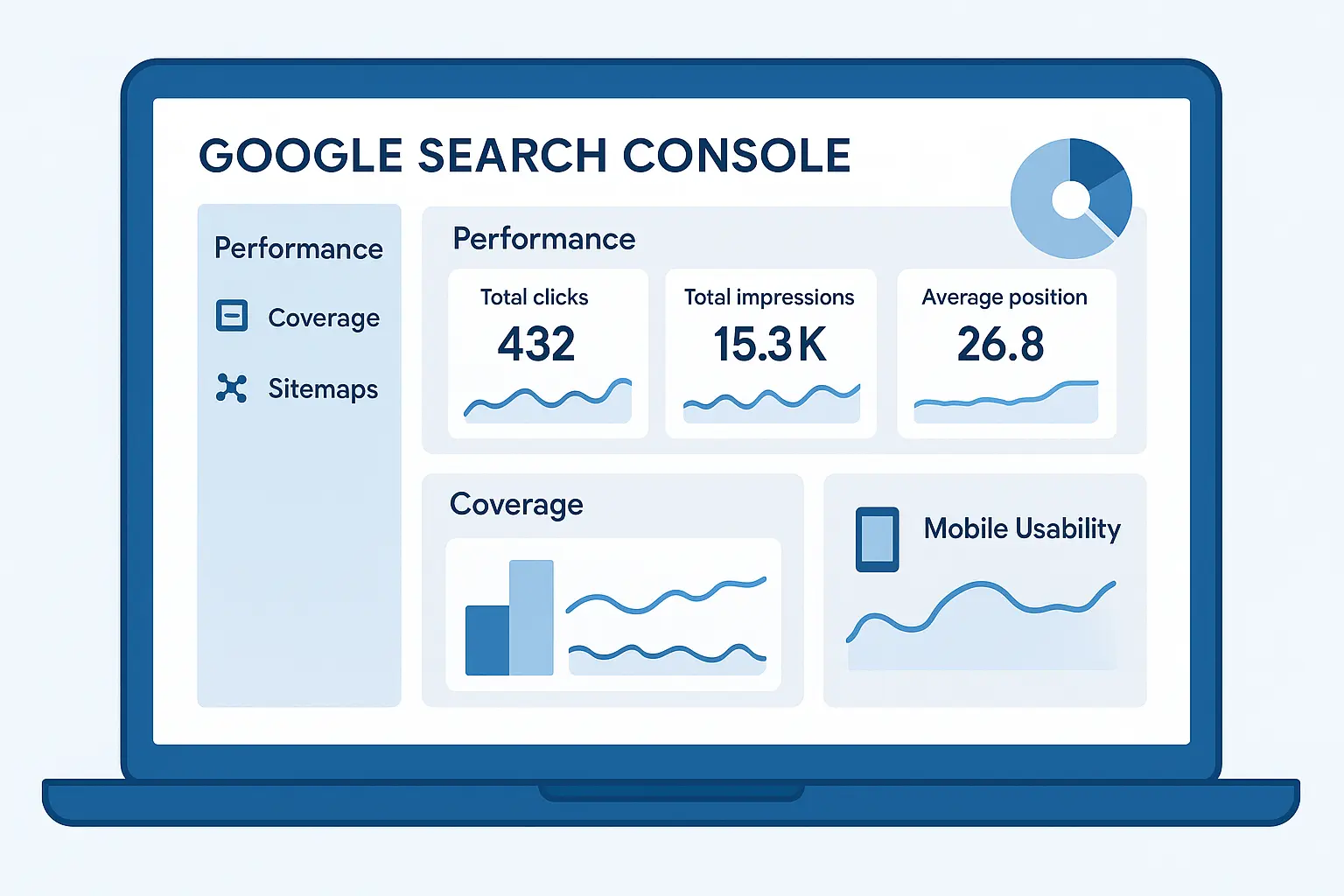
- Google Search Console → Combine traffic + SEO insights.
- Google Ads Integration → Track paid ad performance automatically.
Combine GA4 with these tools to get a 360° view of your marketing.
Conclusion
Data is your biggest advantage in digital marketing — and GA4 makes it accessible for everyone.
Whether you’re a beginner exploring demo data or a business owner tracking conversions, GA4 helps you make decisions based on facts, not guesses.
Start small — open your GA4 account, explore reports, and track one meaningful action.
Every insight you gain will sharpen your strategy.
Want a short GA4 audit guide? Visit the Google Merchandise Store demo and start learning for free today. #DigitalAnalytics #GA4


No comments yet. Be the first to comment!