Google Search Console: The Complete Beginner’s Guide to Boost Your Website Visibility
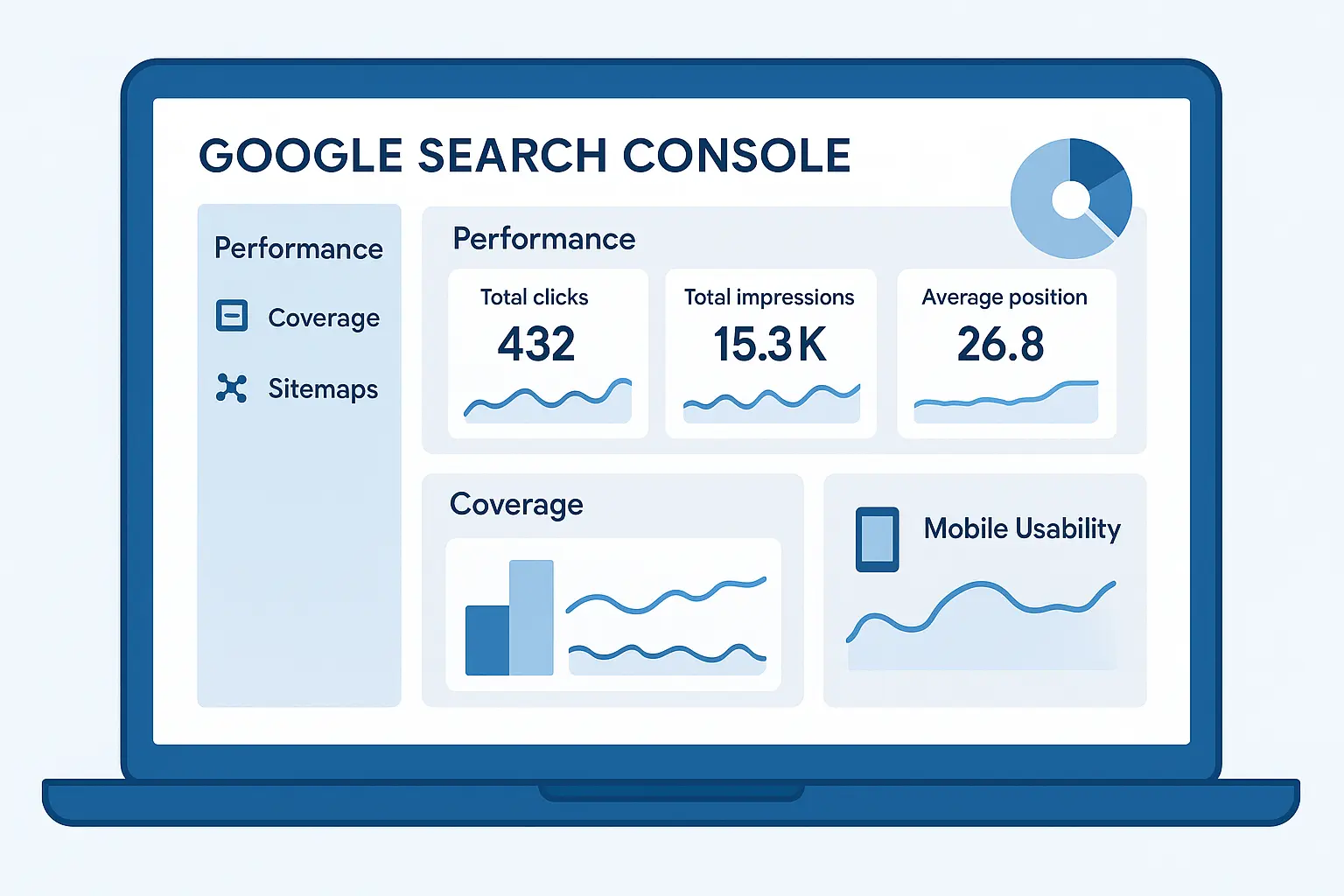
Imagine running a store where you don’t know how many people visit, what they look for, or how they found you. That’s what running a website without Google Search Console (GSC) feels like.
Google Search Console is a free tool by Google that helps you understand how your website appears in search results — what people search before finding you, which pages perform best, and what technical issues may be holding you back.
If you want to rank higher and fix SEO problems early, GSC is a must-have tool for every website owner or marketer.
What is Google Search Console (GSC)?
Google Search Console (formerly known as “Webmaster Tools”) is a free platform that shows how Google sees your website.
It tracks your site’s appearance, clicks, indexing status, and SEO health.
In simple terms:
GSC tells you —
- How often does your site appear in Google search results
- What keywords bring you traffic
- Which pages are performing well
- Whether Google can crawl and index your pages properly
Think of it as a health monitor for your website’s visibility.
Why We Need Google Search Console
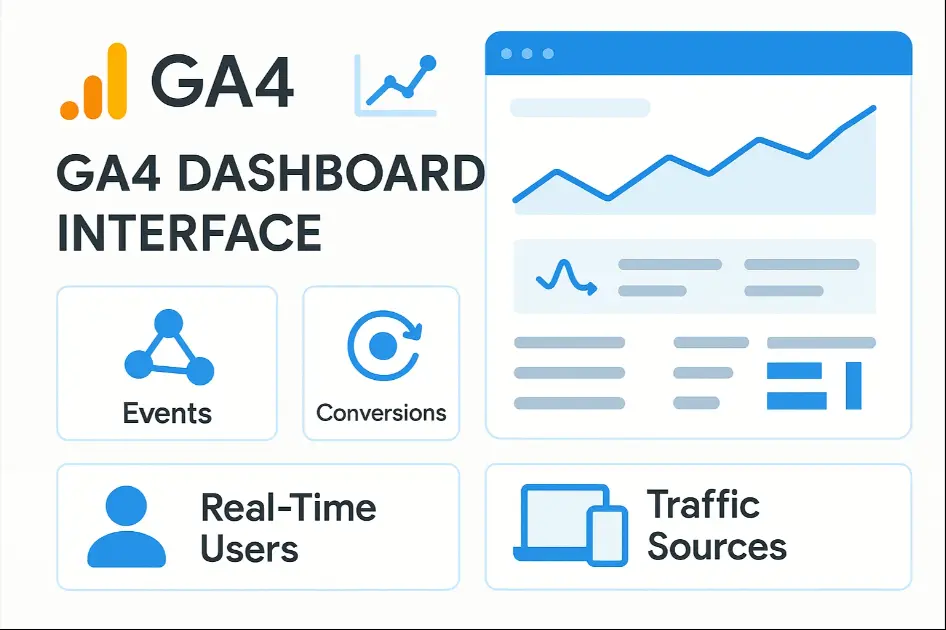
Even if you use Google Analytics (GA4), Search Console gives you SEO data that Analytics doesn’t.
Here’s why every website needs it:
- Find Out How You Rank
See which keywords your site ranks for and in what position (e.g., 3rd on page 1).
- Discover New Keywords
Find real search queries people use to reach your pages.
- Check Indexing Issues
Identify which pages are indexed — and fix those that aren’t.
- Monitor Clicks and CTR (Click-Through Rate)
Measure how often users click your link after seeing it in Google search results.
- Submit Sitemaps
Tell Google exactly which pages to crawl — for faster indexing.
- Fix Mobile & Speed Errors
GSC alerts you when pages are too slow or not mobile-friendly.
- Track Backlinks
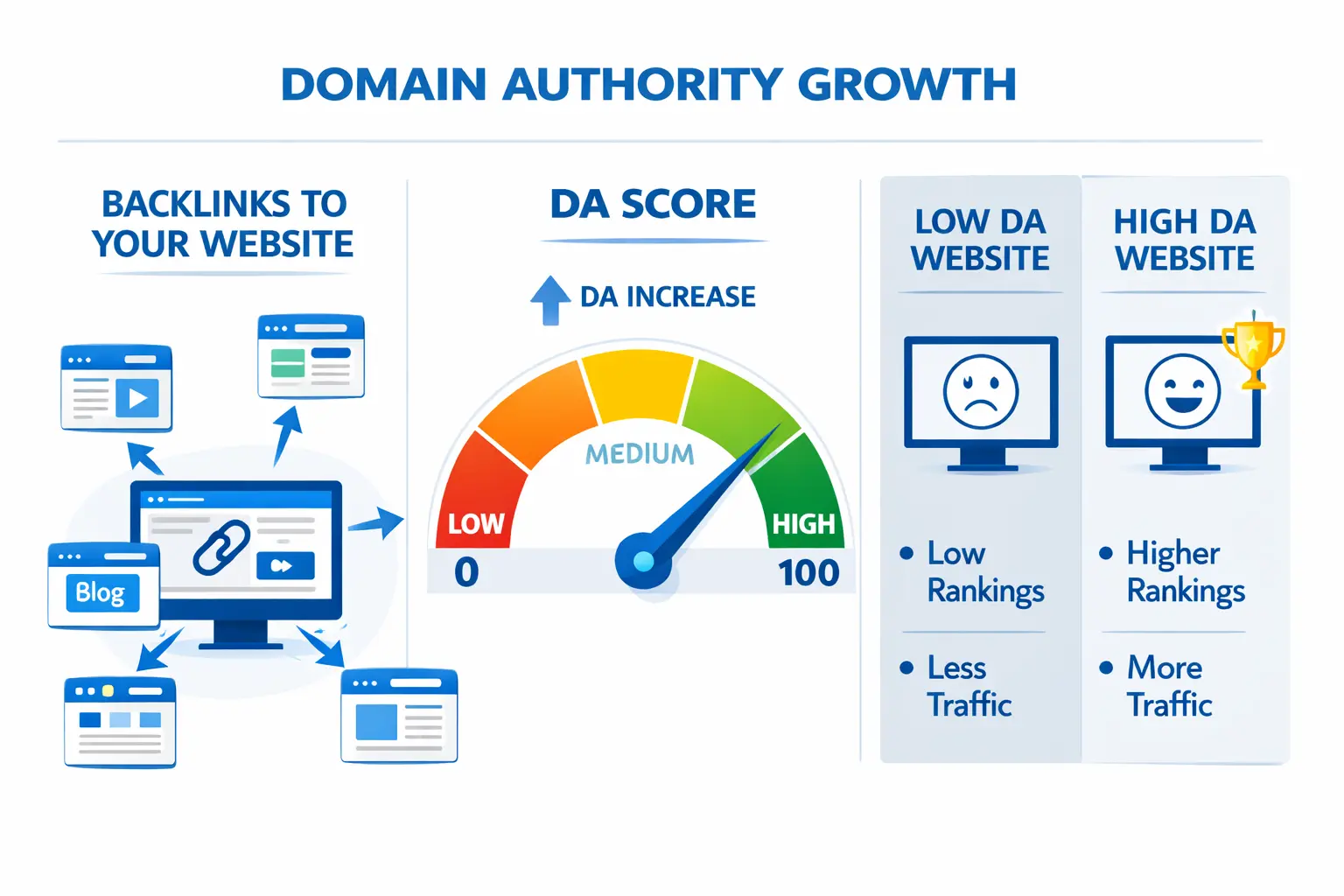
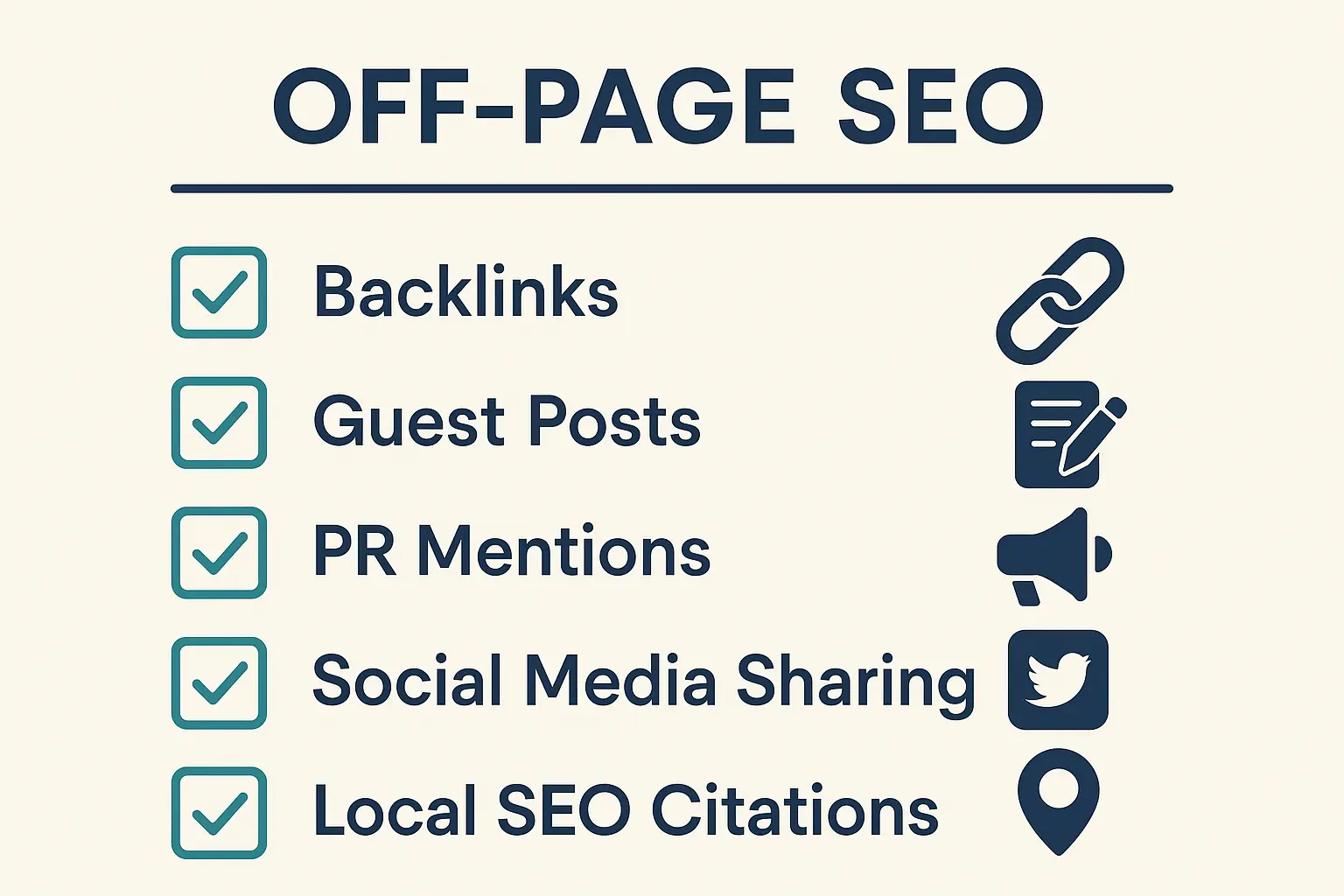
See which websites link back to yours — essential for Off-Page SEO.
- Monitor Security Issues
Google warns you about malware or manual penalties.
In short: Search Console = Free SEO goldmine + free troubleshooting tool.
How to Register and Set Up Google Search Console (Step-by-Step)
Step 1: Go to Google Search Console
- Visit search.google.com/search-console
- Click “Start Now.”
- Sign in using your Google account (use the same one as GA4 for easy linking).
Step 2: Add Your Website Property
GSC gives you two options to connect your website:
Option 1: Domain Property (Recommended)
- Tracks all URLs (with or without “www” and “https”).
- Example: example.com
- Best for complete data across all versions.
Option 2: URL Prefix Property
- Tracks only one version (e.g., https://www.example.com/).
- Easier for beginners, especially if you use a single domain format.
Step 3: Verify Website Ownership
You need to prove to Google that you own the website.
Verification Methods:
1. DNS Verification (Recommended for Domain Property)
- Copy the TXT record GSC gives you.
- Paste it into your domain registrar (like GoDaddy, Namecheap, or Cloudflare).
- Wait for verification (may take a few minutes).
2. HTML Tag Verification (for URL Prefix)
- Copy the HTML meta tag.
- Paste it inside your website’s <head> section.
- Click Verify in GSC.
3. Google Analytics / Tag Manager Verification
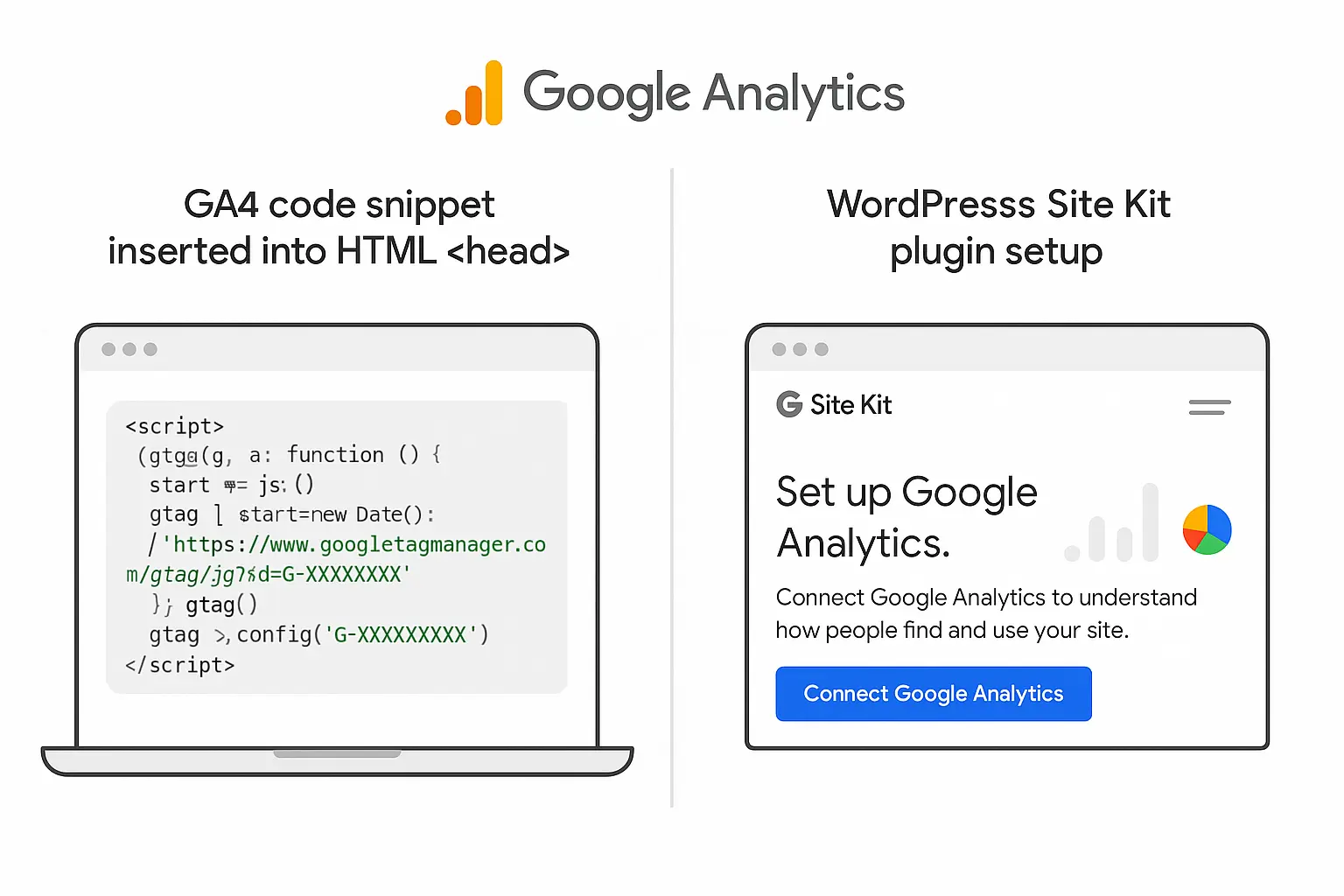
- If GA4 or GTM is already installed, GSC can verify automatically.
Pro Tip: If you use WordPress, you can easily paste the meta tag via plugins like Insert Headers and Footers or Site Kit by Google.
Step 4: Submit Your Sitemap
Once verified, help Google understand your site structure.
- In GSC Dashboard → Go to “Sitemaps.”
- Enter your sitemap URL, usually: https://yourdomain.com/sitemap.xml
- Click Submit.
You’ll see “Success” once Google starts indexing your pages.
Step 5: Explore the Dashboard
After a few days, your data will begin populating. Here’s what you’ll see:
Performance Report
- Total clicks
- Total impressions
- Average CTR
- Average position
This shows which queries and pages bring the most organic traffic.
Coverage Report
Tells you which pages are indexed, and if any are blocked or have crawl errors.
Mobile Usability
Shows pages that aren’t mobile-friendly.
Experience → Page Experience & Core Web Vitals
Rates your site on speed, interactivity, and stability.
Links Report
Lists internal and external backlinks.
Security & Manual Actions
Shows penalties or hacking issues (if any).
How Google Search Console Works with GA4
When linked with Google Analytics 4, GSC provides deeper SEO + user data insights.
Benefits of Linking:
- See Search Console metrics (clicks, queries) directly in GA4.
- Analyse how search visitors behave once they land on your site.
- Find which keywords convert best.
How to Link:
- In GA4 → Go to Admin → Product Links → Search Console Links.
- Click Link → Choose Property → Confirm.
Done! You’ll see combined SEO + user analytics in one place.
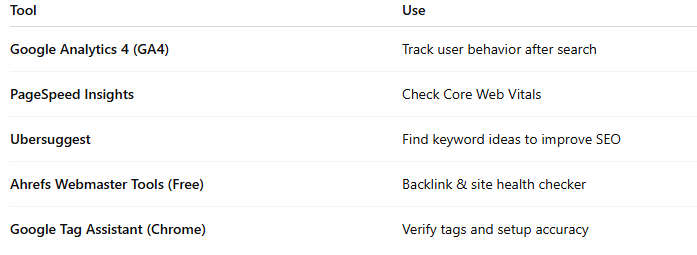
Free Tools That Work Well With Search Console
Enhance your GSC insights with these:
Conclusion
Google Search Console isn’t just a technical SEO tool — it’s your website’s direct communication line with Google.
From finding high-performing keywords to spotting hidden issues, it helps you improve visibility and credibility.
Setting it up is free, simple, and gives you insights that even paid tools can’t.
If you haven’t already, register your website on Search Console today, submit your sitemap, and start exploring your performance report. Data-driven SEO starts here.
“Want a short Search Console setup guide? Comment ‘YES’ and I’ll share my quick checklist!” #SearchConsole #SEOVisibility


No comments yet. Be the first to comment!